Quick Links
The Nintendo Switch 2 is a big upgrade over the original hybrid system that released back in 2017. With 4K, 60 FPS potential, a larger, more vibrant screen, an improved stand, and mouse control support in the Joy-Con, fans can look forward to many more years of happy gaming with this new bit of hardware.
One of the main drawbacks of the original Nintendo Switch was its limited battery life, and many fans are likely wondering if its successor has managed to continue making improvements here, too. Here’show long theNintendo Switch 2battery life is, as well as some tips on how to improve it.

How Long Does the Nintendo Switch 2 Battery Last?
A Big Range
According toNintendo’s official tech specs, theSwitch 2’s battery should last anywhere between 2 and 6.5 hours. On the same page, it states that these are rough estimates and battery life will depend on the games played on the system. In other words, games that are less demanding on the system, such as something likeBalatro,will likely cause the Switch 2’s battery to last longer than playing something likeMario Kart Worldwill.
From my time with the Switch 2 so far,I’ve found that the battery has lasted around three hours playingMario Kart World. This included playing a mix of theFree Roam mode, completing a few Grand Prix, and fiddling around in the various menus and settings.

On the other hand, my Game Rant colleague, Erik Petrovich,playedThe Legend of Zelda: Wind Wakerfor three hours, and the battery was down to 60%.
This suggests that playing games with lower-fidelity visuals,such as GameCube classics, will see the Switch 2 battery life reach the top of the estimated range that Nintendo shared in the official tech specs.

While my Switch 2 battery lasted around the two-to-three-hour mark playingMario Kart World, online play is likely to use up more power and further impact the battery life.
All that being said, there are a few different options in the Switch 2’s system settings that players can use to get a little more playtime out of the battery life.
How to Make the Switch 2 Battery Last Longer
There are a handful of different settings that can be toggled on and off in the Switch 2’s settings that can help players eke out a little more juice from the battery. These aren’t always going to necessarily be something players can, or even want to, change, but if battery life is the priority, this will definitely make a difference.
Turn on Flight Mode
If players aren’t downloading games or using their Switch 2 to play online, then turning on Flight Mode will make a big difference to the battery life. This mode disables Bluetooth and Wi-Fi on the system.
It can only be turned on in handheld mode, but because wireless data transmission is a power-hungry process, players will likely notice the biggest difference when turning this off compared to other settings in this list.

Auto-Sleep
A setting for players who tend to fall asleep playing their games or leave the Switch 2 turned on while they step away. As the name suggests, auto-sleep will put the Switch 2 into sleep mode after a set period of inactivity.
The lower the amount of time set, the less energy the console will consume. Given that long periods of inactivity typically mean the system probably doesn’t need to be fully powered on, this is a worthwhile setting that’ll help get more playtime out of every charge.
Adjust Screen Brightness Settings
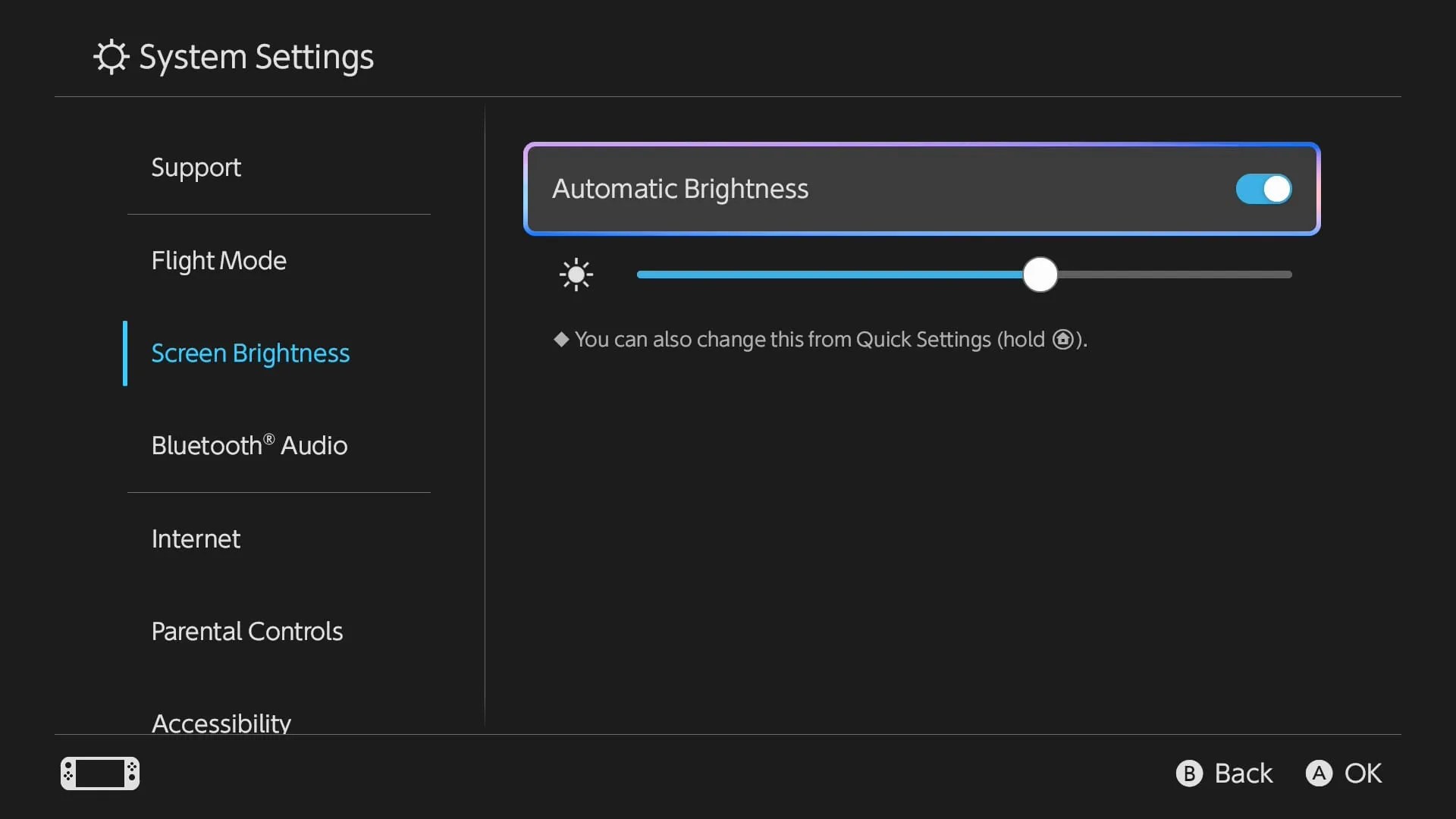
The Switch 2 has a big and beautiful screen, but that also means it requires a lot more power than the original Switch’s display. When used indoors in darker rooms, turning the screen brightness down will help to save battery life.
There’s also an Auto-Brightness setting, which will adjust the screen’s brightness depending on how bright its surroundings are. This is perfect for players who find themselves playing their system indoors and outdoors regularly, who don’t want to jump into the settings all the time to adjust it.

Turn Off Joy-Con Rumble
Tucked away in the ‘Controllers & Accessories’ menu of the settings is a Controller Vibration option. As the name suggests, this stops your Joy-Con (or Pro Controller) from using its HD Rumble feature to respond to different things happening in your game.
This is a more noticeable difference to the gameplay experience, but all that Joy-Con rumbling requires a motor to be powered, which will be sipping away at the Switch 2 battery life.
Turning off controller vibration will disable it across all controllers, but if you’re using a Pro Controller, this setting won’t impact the Switch 2’s battery life, as the controller has its own battery.
Stop Charging at 90%
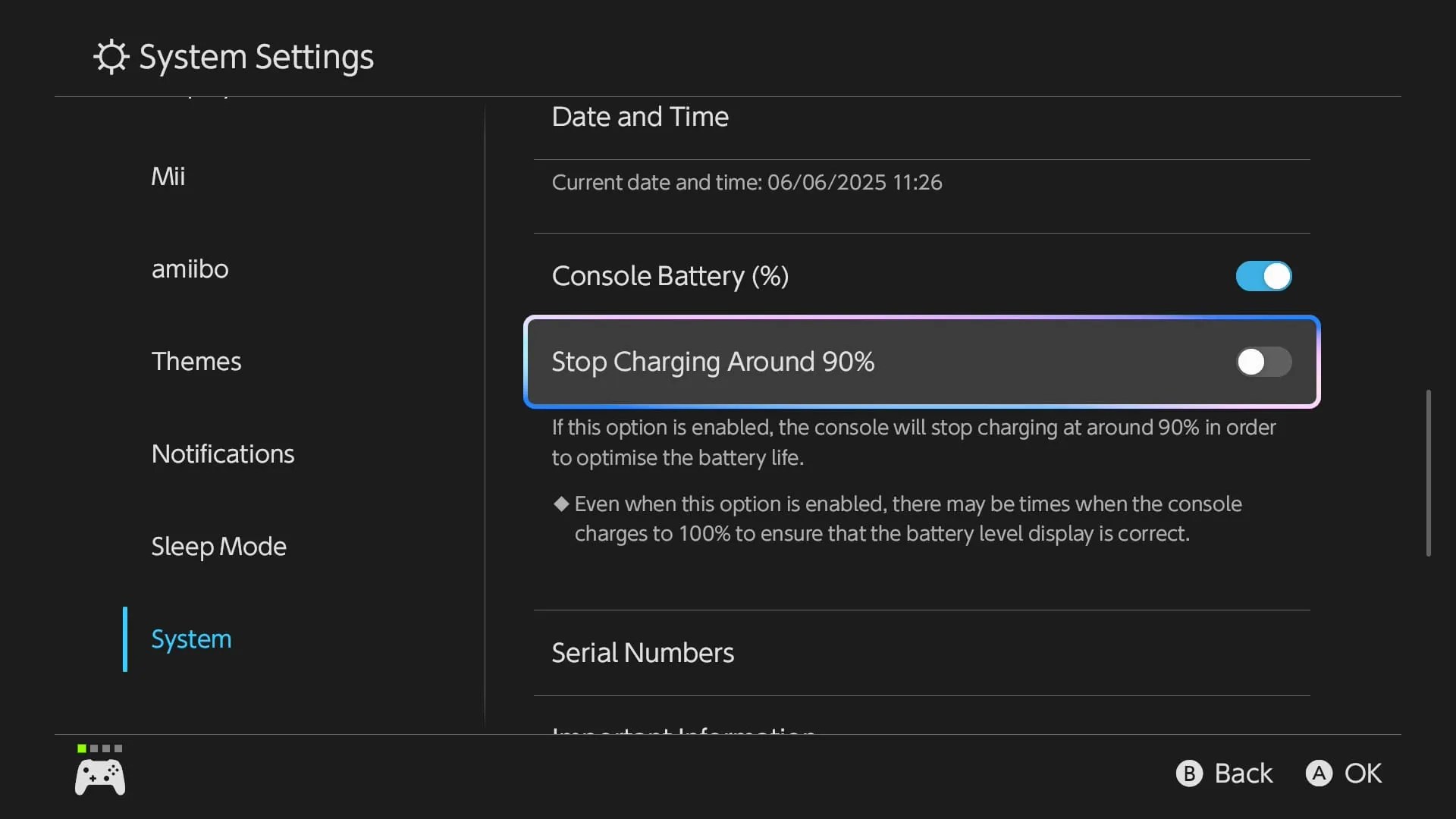
This setting focuses on the longevity of the Switch 2’s battery life, rather than the amount of time users will get out of an individual charge, for obvious reasons. In the System menu of the settings, players can find a ‘Stop Charging Around 90%’ option.
This will shorten the amount of playtime per charge due to the battery always being 10% off full charge. However, batteries slowly succumb to wear and tear over years of full charge cycles. As such, this setting prevents the system from doing full charges, which will help keep the battery healthier than if it were turned off.
Are There In-Game Settings That Help Extend Battery Life?
At the time of writing, no, Switch 2 titles don’t have settings that players can toggle on or off to preserve battery life or improve performance. The Switch 2 automatically runs games better when docked and connected to a TV, but there’s no word on whether more customizable graphics settings might be an option in future Switch 2 titles.
